How to Upload Stories with RSS
Set up a Really Simple Syndication (RSS) feed to import stories from your content management system into Wire. Review them in your RSS Inbox before sending them to the Upload page, or enable automatic imports to publish them directly. Setting up a feed takes about five minutes once you have the feed URL.
Looking for manual uploads?
If you prefer to upload stories one at a time without RSS, see How to Upload a Story.
Before You Begin
You must be an Outlet or Group administrator to add or edit RSS feeds. Members without admin permission can still open the RSS Inbox to read items, but won't be able to follow the setup steps below. Ask your administrator if you're not sure which role you have.
You will need:
- A Wire account with a verified Outlet (see Join an Outlet)
- Membership in at least one Group (see Join a Group)
- The URL of your Outlet's RSS feed
Note
Most content management systems (WordPress, Ghost, etc.) generate RSS feeds automatically. Common feed URLs include /rss, /feed, /rss.xml, /feed.xml, or /?feed=rss2 (WordPress). Check your CMS documentation or look for an RSS icon on your website.
Instructions
Navigate to RSS Feeds
-
Log in to your Wire account.
-
Click RSS in the navigation bar to open the RSS Inbox.
-
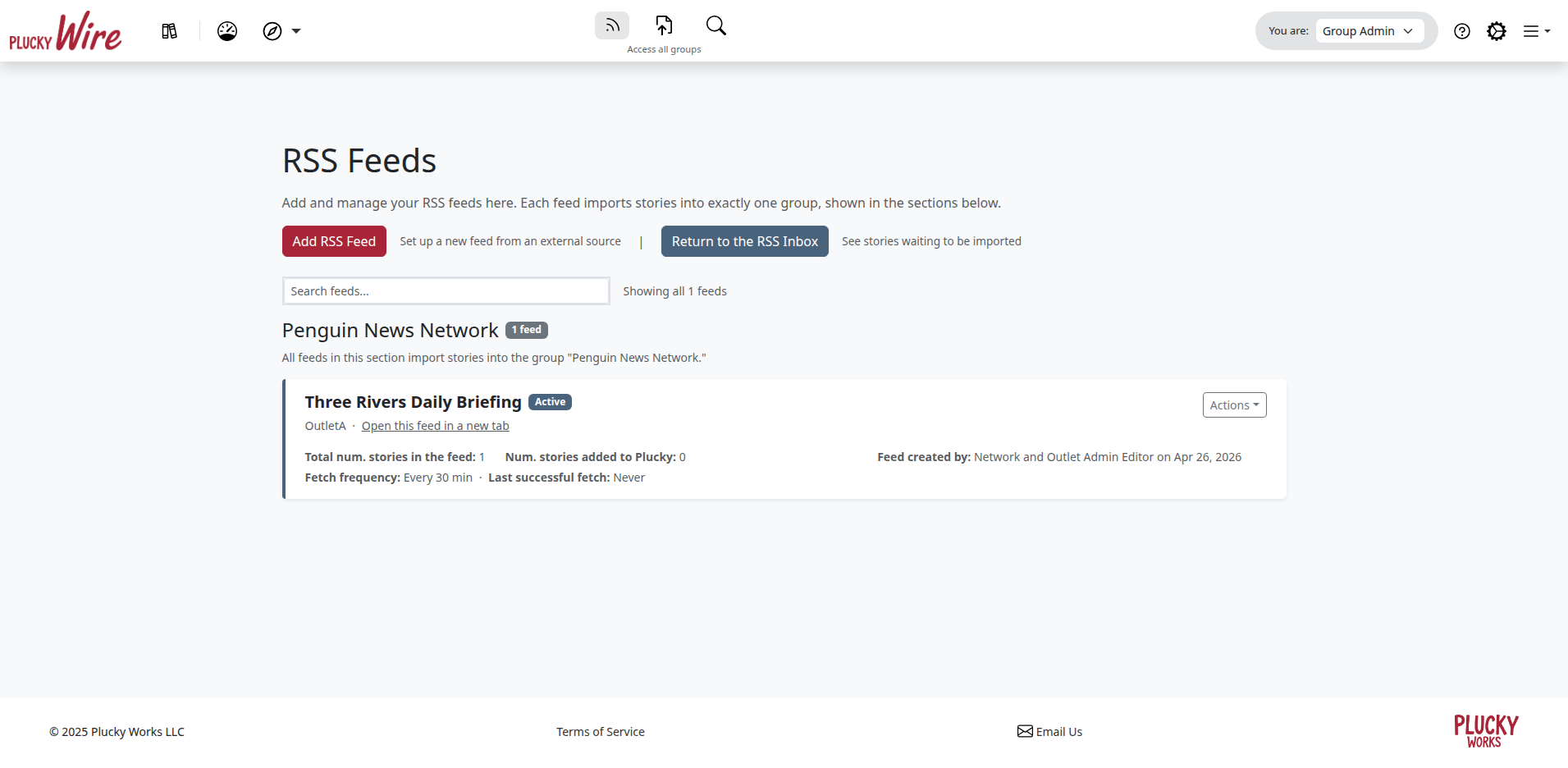
Click Manage RSS Feeds to view your existing feeds or add a new one. You'll choose which Group the feed belongs to on the form itself in the next section, so there's nothing to set up here first.
Add a New Feed
Click Add RSS Feed to open the feed creation form. Fill out the fields below, click Test Feed to verify the URL returns valid content, then click Create RSS Feed to save.
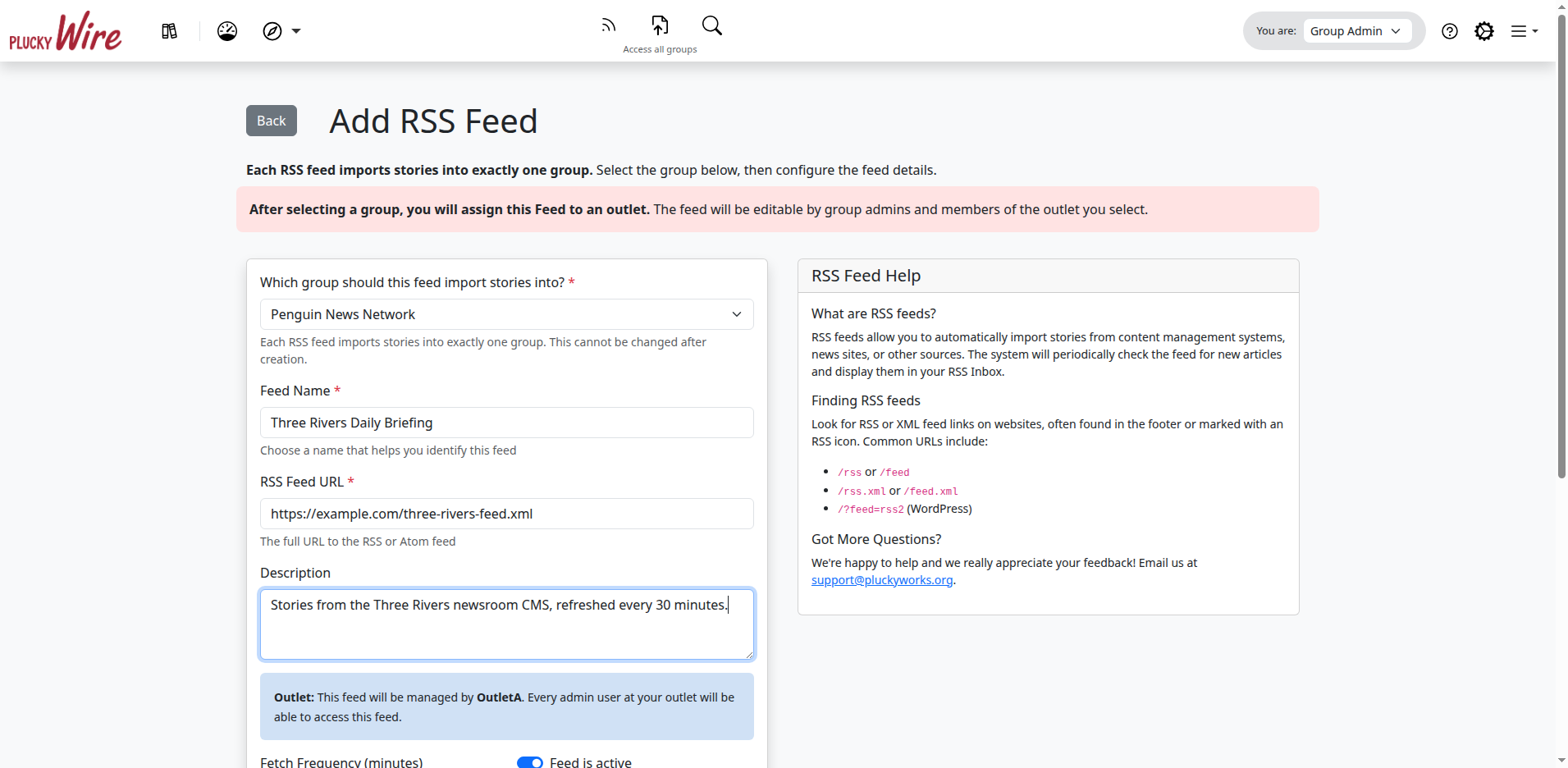
| Field | Required? | What to enter |
|---|---|---|
| Group | Required | The Group this feed will import stories into. Pick from the dropdown. Only Groups you can upload to appear, and the choice can't be changed after the feed is created. Selecting the Group reveals the rest of the form. |
| Feed Name | Required | A descriptive name for this feed (e.g., "Main News Feed" or "Sports Section RSS"). The name is used to filter the RSS Inbox by feed. |
| RSS Feed URL | Required | The full URL to your RSS or Atom feed (e.g., https://example.com/feed.rss). |
| Description | Optional | A description of what this feed contains. Helpful when you have multiple feeds. |
| Outlet | Required | The Outlet that will manage this feed. If you administer exactly one Outlet in the selected Group, Wire auto-assigns the feed to that Outlet and shows an info message instead of a dropdown. Group admins, and members who administer more than one Outlet in the Group, pick from a dropdown of every Outlet in the Group. |
| Fetch Frequency | Optional | How often Wire checks the feed for new items, in minutes. Default 30, minimum 10, maximum 11520 (8 days). |
| Feed is active | Optional | Leave on to begin fetching immediately. Toggle off to pause the feed; you can re-enable it at any time from the same page. |
After you save, Wire validates the feed once more (this can take a few seconds), then redirects you to the Manage RSS Feeds page.
Review Stories in the RSS Inbox
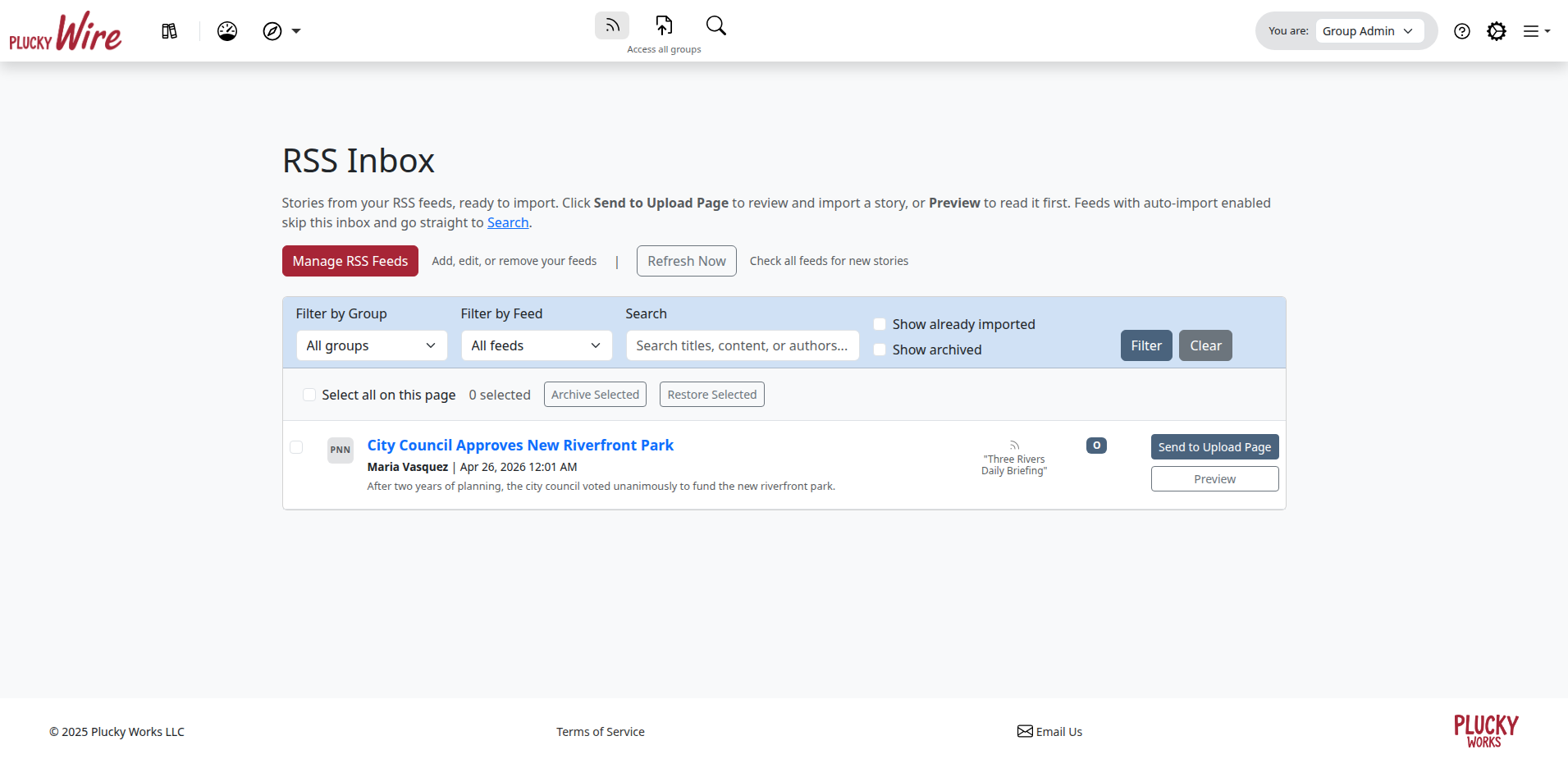
When your feed is active, Wire periodically checks it for new stories and adds them to your RSS Inbox. The inbox is a staging area: items there are not visible to other Outlets until you send them to the Upload page and complete the upload.
-
Click RSS in the navigation bar to open the RSS Inbox.
-
For each story you want to share with your Group, click Send to Upload Page.
-
Complete the remaining fields on the Upload page and submit. See How to Upload a Story for details on filling out each field.
Enable Automatic Imports (Optional)
Automatic imports skip the inbox review step and convert new RSS items directly into published stories.
Warning
Automatic imports publish straight to your Group with no human review, and every Outlet in the Group can download an auto-imported story the moment it lands. Only enable automatic imports after thorough manual testing: confirm the feed reliably delivers properly formatted headlines, accurate publication dates, and complete content from a source whose structure won't change unexpectedly. You can disable automatic imports at any time by toggling Enable automatic story import back off.
-
Click RSS in the navigation bar, then click Manage RSS Feeds.
-
Click on the feed you want to configure.
-
Toggle Enable automatic story import to ON. The preset fields below the toggle determine how every auto-imported story is published.
-
Fill out the preset fields:
Field Required? What to enter Default License Required The License terms applied to imported stories. Determines how other Outlets in your Group can use the content. Default Boilerplate Optional A Boilerplate to automatically include standard text (typically about your Outlet) at the start or end of imported stories. Default Series Optional If imported stories belong to an ongoing series, select it here. Default Embargo (hours) Optional Hours after import before other Outlets can download the story. Leave blank for no embargo. Update story in Plucky to match updates in feed Optional When enabled, an imported story automatically updates if your RSS source updates the article, and the change is recorded in the story's version history. Any manual edit to an imported story disables syncing for that story so your changes aren't overwritten. -
Click Update RSS Feed to save.
Info
A Group administrator must approve the new automatic-import configuration before it becomes active. Until then, the feed shows a "Pending network admin approval" badge (a small label highlighting the feed's status) on the settings page. If you are the Group administrator, see How to Approve RSS Feeds for Automatic Imports for the approval steps.
What Happens Next
Once automatic imports are approved and active:
- Wire publishes every new RSS item as a story in your Group, using the preset License, Boilerplate, Series, and embargo you configured.
- Other Outlets in your Group can preview, download, and reprint each imported story under the License you selected, subject to the embargo window if set.
- If you enabled Update story in Plucky to match updates in feed, revisions in your content management system automatically update the published story, and each change is recorded in the story's version history.
- You can pause automatic imports at any time by editing the feed and toggling Enable automatic story import off, or pause the feed entirely by toggling Feed is active off.
Next Steps
After setting up your RSS feed:
- Monitor your RSS Inbox for the first few days to confirm stories are importing correctly
- Find stories shared by other Outlets in your Group
- Open any imported story page to see download counts per Outlet at the bottom of the page
Troubleshooting
-
"Invalid feed URL" error: Verify the URL is correct and publicly accessible. Try opening the URL directly in your browser to confirm it returns RSS or XML content.
-
Feed isn't finding new stories: Check that the feed is active (not paused). Verify the fetch frequency is appropriate for how often your site publishes. Click Test Feed to manually re-check the connection.
-
Stories are missing content: Some RSS feeds only include excerpts rather than full content. Check your CMS settings to ensure full content is included in the feed.
-
Automatic imports aren't working: Verify that a Group administrator has approved automatic imports for the feed. Look for the approval badge on the feed's settings page. Group admins can follow How to Approve RSS Feeds for Automatic Imports.
-
I need to change the Outlet for a feed: Group admins can change the Outlet assignment by editing the feed and selecting a different Outlet from the dropdown. Outlet admins cannot reassign feeds to other Outlets.
-
Still stuck? Contact your Group administrator for permission and policy questions, or email support@pluckyworks.org for technical problems.