How to Approve RSS Auto-Imports
Review and approve Really Simple Syndication (RSS) feeds that someone in your Group has set up for automatic imports, so new items from those feeds publish straight into your Group as stories. You can also revoke approval later if a feed starts misbehaving.
Looking for a different settings tab?
For the General tab, see How to Configure Group Settings. For Users and roles, see How to Manage Members. For Licenses, see How to Manage Content Licenses. For Outlets, see How to Manage Outlets.
Setting up a new feed instead?
The person who owns a feed configures the auto-import presets. See How to Upload Stories with RSS for the setup steps that produce the pending feeds you'll review here.
Before You Begin
You must be a Group administrator to follow this guide. Outlet members without admin permission won't see the settings described below. Ask your Group administrator if you're not sure which role you have.
You will need:
- A Group you administer (see How to Start a Group)
- At least one RSS feed in your Group with Enable automatic story import turned on, usually configured by an Outlet admin (see How to Upload Stories with RSS)
The RSS Feeds tab is one of nine tabs on the Group settings page. It lists every feed in your Group that has automatic imports turned on (split into a Pending Approval card and an Approved Feeds card) and is the only place these feeds can be approved or revoked. Feeds without auto-import enabled don't appear here at all; those are managed from the per-feed RSS Feeds page that Outlet admins use.
Instructions
Open the RSS Feeds Tab
-
Go to Settings (https://wire.pluckyworks.org/settings/) and select your Group from the sidebar.
-
Click the RSS Feeds tab.
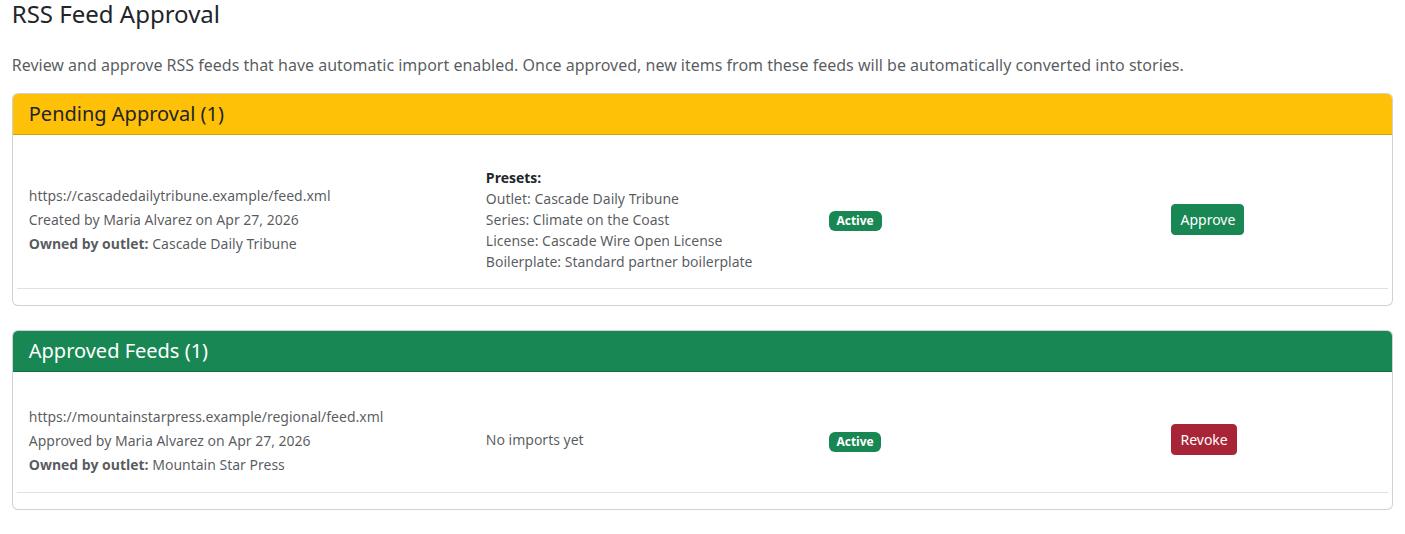
The tab opens to the RSS Feed Approval page, which shows a Pending Approval card (only when there are feeds awaiting review), an Approved Feeds card (only when at least one feed is approved), and an empty-state message when neither applies.
Review a Pending Feed
Each row in the Pending Approval card surfaces the details that matter for an approval decision.
| What you'll see | Why it matters |
|---|---|
| Feed URL | The source the feed pulls from. Open it in a new tab if you want to inspect the live RSS contents before approving. |
| Created by and date | Who configured the feed, so you know who to talk to if something looks off. |
| Owned by outlet | The Outlet that will be credited on every auto-imported story. Verify the Outlet is the one you'd expect. |
| Presets | The Outlet, Series, License, and Boilerplate that will be applied to every imported story. The License is especially worth scrutinising: it determines how every other Outlet in your Group can reuse the content. |
| Status badge | Active is normal for a fresh feed. Has Errors means the feed has hit a fetch error that hasn't yet broken auto-imports. Auto-import Disabled means an auto-import attempt itself errored. Read the error message under the badge before approving, and check whether the source has been fixed. |
If anything in the row is wrong (the wrong Outlet, an unexpected License, an error you don't understand), talk to the person who created the feed instead of approving. Approval can't fix a misconfigured feed; it just lets the misconfiguration publish.

Approve the Feed
Warning
Approving a feed lets it publish stories into your Group with no human review. Every Outlet in the Group can preview, download, and reprint each auto-imported story the moment it lands, under whichever License is configured on the feed. You can revoke approval at any time by clicking Revoke in the Approved Feeds card (see Revoke an Approval below), but stories that already published while the feed was approved will remain in your Group.
-
In the Pending Approval card, find the row for the feed you want to approve.
-
Click the green Approve button at the right end of the row.
-
A browser confirmation dialog appears asking "Are you sure you want to approve automatic imports for this RSS feed?" Click OK to confirm.
The page reloads. The feed disappears from Pending Approval and reappears in the Approved Feeds card with your name and today's date as the approver.
Revoke an Approval
If a previously-approved feed starts producing bad stories (missing content, wrong attribution, broken images), revoke its approval to halt new auto-imports while you investigate.
Warning
Revoking an approval stops new auto-imports immediately, but stories that already published while the feed was approved remain in your Group. If any of them shouldn't be there, open the Search page and edit or delete each one individually. There is no bulk un-publish.
-
In the Approved Feeds card, find the row for the feed.
-
Click the Revoke button at the right end of the row.
-
A browser confirmation dialog appears asking "Are you sure you want to revoke approval for this RSS feed?" Click OK to confirm.
The feed moves back into Pending Approval. Auto-imports stop the next time Wire fetches the feed.
What Happens Next
Approval and revocation changes ripple to every Outlet in your Group:
- Once you approve a feed, the next time Wire fetches it (within the configured fetch frequency, usually 30 minutes), every new item is published as a story in your Group, using the feed's preset License, Boilerplate, Series, and embargo.
- Every Outlet in the Group can immediately preview, download, and reprint each imported story under the License you saw on the approval row, subject to the embargo window if one was set.
- If the feed has the Update story in Plucky to match updates in feed preset enabled, edits in the source content management system automatically update the published story; manual edits to a story in Plucky disable syncing for that one story.
- If an auto-import fails repeatedly (10 consecutive failures), Wire automatically clears the approval and moves the feed back to Pending Approval with the error message on the row. Talk to the person who owns the feed about the source-side problem before re-approving.
- When you revoke approval, new imports stop, but already-published stories stay in the Group. The feed reappears in Pending Approval so you (or another Group admin) can re-approve it after the underlying issue is resolved.
Both approval and revocation are reversible: you can revoke an approved feed and re-approve it later from the same page. The exception is the stories themselves: anything that was auto-imported while the feed was approved stays in your Group until someone deletes it manually.
Next Steps
- How to Manage Content Licenses: Configure the License options that uploaders can pick from when they set up auto-imports
- How to Manage Outlets: Adjust which Outlets can upload to the Group, including the ones that own RSS feeds
- How to Upload Stories with RSS: The uploader-facing companion guide, useful when you need to walk an Outlet admin through fixing a feed's presets
Troubleshooting
-
The RSS Feeds tab doesn't appear in Group Settings: You aren't viewing settings for a Group where you're a Moderator or Owner. Pick a different Group from the sidebar, or ask an existing Group admin to promote your role (see How to Manage Members → Change a Member's Role).
-
The Pending Approval card is missing entirely: The card only renders when at least one feed is awaiting review. If every auto-import feed in your Group is already approved, the card disappears and only Approved Feeds is visible. To check whether a specific feed is approved, scan the Approved Feeds card for its URL.
-
The Pending Approval card is empty but an Outlet admin says they enabled auto-imports: The feed is probably already in the Approved Feeds card: the previous approval is still in effect. If the Outlet admin only changed presets, the feed stays approved unless those changes cleared the approval; otherwise no re-approval is needed.
-
A feed I just approved isn't producing stories: Auto-imports run on the feed's fetch schedule, not immediately. Check back after the configured Fetch Frequency (default 30 minutes). If still nothing appears, the Outlet admin who owns the feed can open it from the Manage RSS Feeds page (linked from the RSS Inbox) and check for an error message.
-
An approved feed got moved back to Pending Approval on its own: Wire automatically clears the approval after 10 consecutive import failures and records the error on the feed row. Read the error, then ask the person who owns the feed to fix the source before you re-approve.
-
I approved the wrong feed: Click Revoke in the Approved Feeds card. Stories that already published remain. Open the Search page and delete any that shouldn't be there.
-
Still stuck? Talk to the Outlet admin who configured the feed for source-side problems, or email support@pluckyworks.org for problems with the approval page itself.