How to Download a Story
Download a story for republishing: copy the text, save attached media, and grab embed codes for any external content. Your Outlet's monthly download allowance is reserved when you start the download, so preview the story first.
Looking to automate downloads?
Every story you download is added to a private RSS feed for your Outlet. Point your CMS at the feed and new downloads will appear automatically. See Automate Downloads with RSS below.
Before You Begin
You will need:
- A story you want to reprint (see How to Find Stories)
- Remaining downloads in your Outlet's monthly allowance, unless your Group has unlimited downloads
Instructions
Start the Download
-
On the story page, click Reprint this story.
-
If you belong to multiple Outlets, choose which Outlet is reprinting the story from the dropdown, then click Select.
You'll be taken to the download page.
Warning
The download is recorded the moment you click Reprint this story, even if you never copy any text. It counts toward your monthly limit and shows up in the story's activity statistics. Preview the story before you click.
Info
Outlets have download limits based on their subscription level. Check your remaining downloads in the navbar at the top of the page. Some Groups under institutional contracts have unlimited downloads. Email support@pluckyworks.org if you think your Group qualifies but limits still apply.
Copy Story Fields
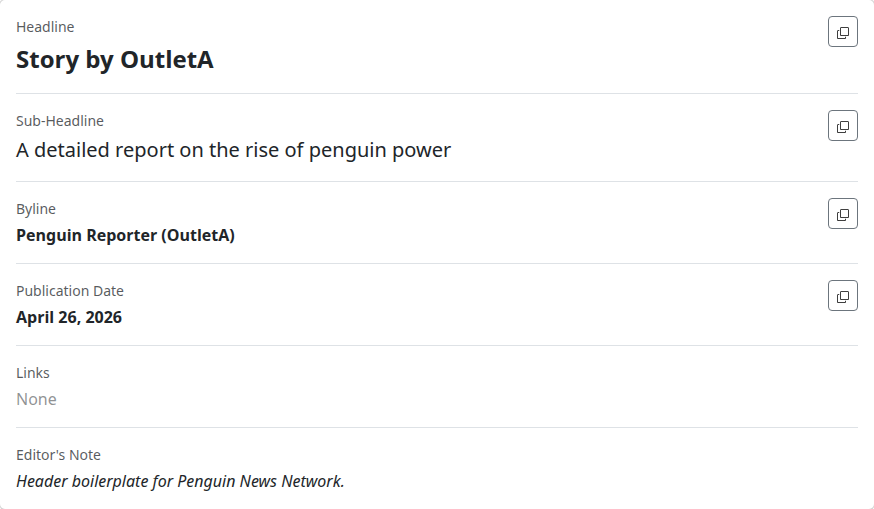
The download page shows each story field in a metadata card. Fields with a copy icon next to them can be copied to your clipboard with a single click.
| Field | What it shows |
|---|---|
| Headline | The story title. Copyable. |
| Sub-Headline | The secondary headline, if the author included one. Copyable. |
| Byline | Author name(s) and Outlet attribution. Copyable. |
| Publication Date | The original publication date. Copyable. |
| Canonical URL | The web address of the original story, shown as a link. Read-only. |
| Editor's Note | Any editor's note and Outlet boilerplate attached to the story. Read-only. Copy any text you need by hand. |
Download the Full Text
-
Scroll to the Body Text section at the bottom of the page.
-
Click Copy as HTML to copy the text with formatting preserved (bold, italics, links, headings, lists).
Or click Copy as Text to copy plain text without formatting.
Info
If the story contains hyperlinks, a warning appears reminding you that links may not be appropriate for print publications.
Download Attachments
Stories with images, audio, video, or PDFs include an Audiovisuals section.
To download a single attachment:
-
Find the attachment you want.
-
Click the download icon below it. A checkmark appears when the download completes.
Each attachment with a cutline (caption) shows it in the text area below. Click to expand and copy.
To download every attachment at once, scroll to the action bar at the top of the page and click All Attachments under the Download attachments label.
Use Embedded Media
Stories with embedded content from external services (YouTube videos, Datawrapper visualizations, DocumentCloud documents) include an Embedded Media section.
You can't download embedded media directly. Instead, copy the embed code and paste it into your site:
-
Find the embedded media item you want.
-
Click Copy Iframe Code to copy the embed code.
-
Paste the code into your website's HTML where you want the media to appear.
Info
Click any embedded media thumbnail to preview it in a larger view.
Add the Tracking Code (If Provided)
If your Group uses pixel tracking for analytics, the download page includes a Tracking Code section with an HTML snippet.
-
Click Copy to copy the tracking code.
-
Paste it into your published story's HTML so the original Outlet can track republication reach.
What Happens Next
Once you've started the download:
- The download counts against your Outlet's monthly allowance immediately, even if you don't copy any text.
- The story appears in the original Outlet's activity statistics: they can see that your Outlet has reprinted it.
- The story is added to your Outlet's private RSS feed for downloaded stories. See Automate Downloads with RSS below.
Next Steps
After downloading a story:
- Return to Search to find more stories.
- Open the story page again to see who else has downloaded it. Counts appear at the bottom of every story.
Automate Downloads with RSS
Every story you download is added to a private RSS feed for your Outlet. If your CMS supports RSS imports, point it at the feed and new downloads will appear automatically.
Find Your RSS Feed URL
-
Go to Settings and select your Outlet.
-
In the General tab, scroll to the RSS Feed Integration section.
-
Click Copy to copy your feed URL.
Warning
Treat your RSS feed URL like a password. Anyone with this URL can read the full text of every story you've downloaded.
What's in the Feed
The feed contains your 50 most recently downloaded stories, newest first. Each item includes:
- Headline and sub-headline
- Full story text with HTML formatting
- Author name and publication date
- Link to the original story
- Images, audio, and video files (as media enclosures)
- Embedded content like Datawrapper charts or YouTube videos
The feed uses RSS 2.0 with content:encoded for the full story text, compatible with WordPress / Newspack, Ghost, BLOX CMS, and Drupal, among others.
Troubleshooting
- "Download limit reached" error: Your Outlet has used all its monthly downloads. Wait for the next billing cycle, upgrade your subscription, or ask your Group administrator about exemptions.
- "This story is embargoed" error: The story isn't available for download yet. Check the story page for the embargo date and try again after it passes.
- An attachment won't download: Check your browser's download settings and pop-up blocker. As a fallback, right-click the Download button and choose "Save link as."
- Embedded media isn't displaying on my site: Make sure your website allows iframes from the media provider (YouTube, Datawrapper, etc.). Some content management systems block external embeds by default.
- I accidentally downloaded the wrong story: The download has already been recorded and counts toward your limit. Preview stories carefully before clicking Reprint this story to avoid this.
- Still stuck? Ask your Group administrator about subscription, License, and embargo questions, or email support@pluckyworks.org for technical problems.