How to Create an Outlet
Register a new Outlet (your news organization on Wire) so you can join Groups (the content-sharing collaboratives where Outlets share stories with each other), upload reporting, and download from the wire. Creating an Outlet takes about five minutes once you have your newsroom's basic details on hand.
Looking to join an Outlet that already exists?
If your newsroom is already on Wire and you just want to be added to it, follow How to Join an Outlet instead.
Three Ways to Create an Outlet
Where you start from determines which path you'll follow. Pick the one that matches your situation. Each path lands on a similar form, but the way you get there differs:
-
From your dashboard: Use this path when you already have a Wire account and need to register your own newsroom. The "Register Your Outlet" form sits at the bottom of the same page where you'd otherwise search for an existing Outlet to join. This path is also documented as the second half of How to Join an Outlet.
-
Through a Group signup link: Use this path when a Group administrator sent you a signup link (these usually start with
https://wire.pluckyworks.org/network-signup/...) and your newsroom isn't on Wire yet. Creating the Outlet is one step inside the larger signup wizard. For the full account-creation and Group-joining flow, see How to Sign Up with a Signup Link. -
From your Group's settings: Use this path when you administer a Group and want to add an Outlet to it directly. Group administrators only. This path is also documented in the Add an Outlet section of How to Manage Outlets.
Before You Begin
You will need:
- A Wire account (see Sign up with email or Sign up with MuckRock). If you're starting from a Group signup link, you can register your account during the same flow.
- Your Outlet's basic details: the official name, website URL, and a contact email, typically a shared inbox like
news@yourpaper.org. - For the Group settings path: a Moderator or Owner role in the Group you want to add the Outlet to.
Note
Before creating a new Outlet, search for it first. Wire flags duplicate Outlets, and if your newsroom is already registered, you want to join it (so you become a member of the existing Outlet), not create a parallel one.
Instructions
The dashboard and signup-link paths collect the same five Outlet details. See the field reference under Outlet details fields. The Group settings path collects only three (Outlet Name, Website URL, Primary Email); you can add Location and Description later by editing the Outlet.
Create from Your Dashboard
-
Log in at https://wire.pluckyworks.org.
-
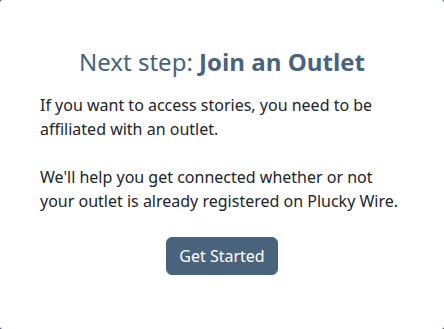
On the dashboard, find the Next step: Join an Outlet card and click Get Started.
-
In the search box, type your Outlet's name and click SEARCH. This confirms your newsroom isn't already on Wire.
-
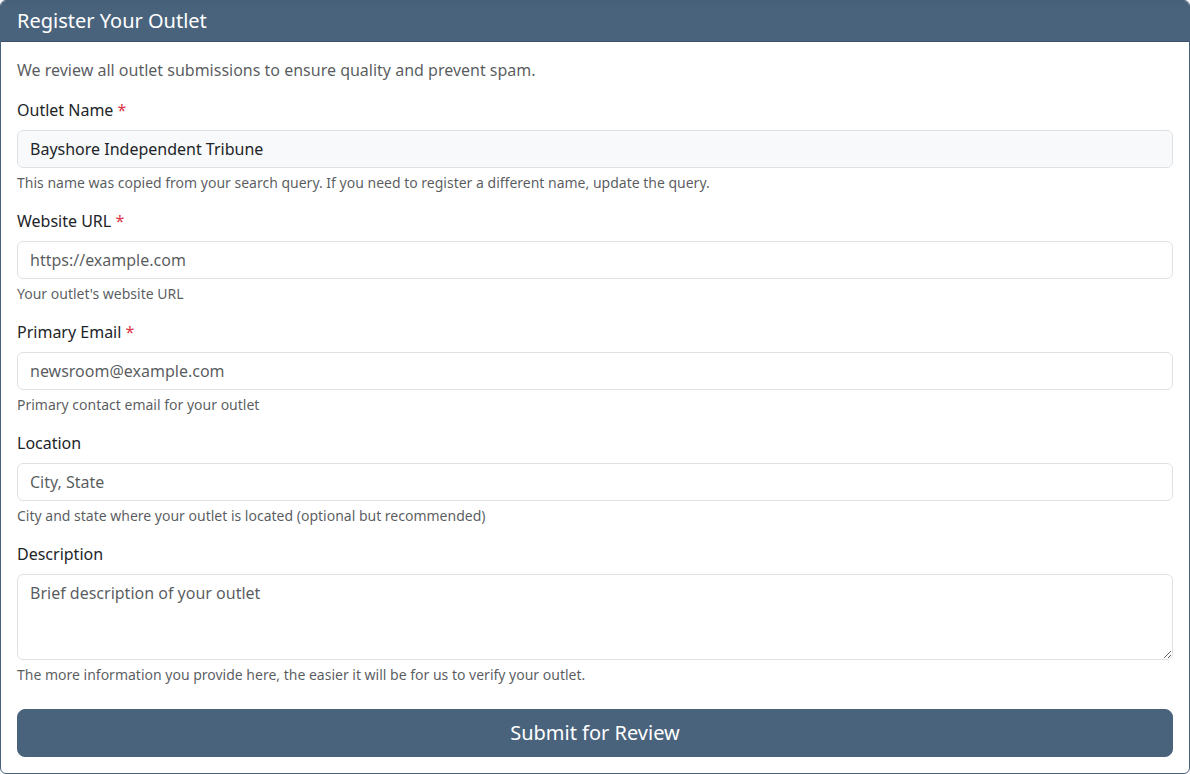
If no Outlets match, scroll to the Register Your Outlet form. If results were found but none match yours, click Register [your search query] to expand the form.
-
Fill out the form. See Outlet details fields below.
-
Click Submit for Review.
Create Through a Group Signup Link
The signup link runs a wizard that creates your account, your Outlet, and your Group membership in one flow.
-
Click the signup link your Group administrator shared with you.
-
Register your account (or sign in if you already have one). For the full account-creation walkthrough, see How to Sign Up with a Signup Link.
-
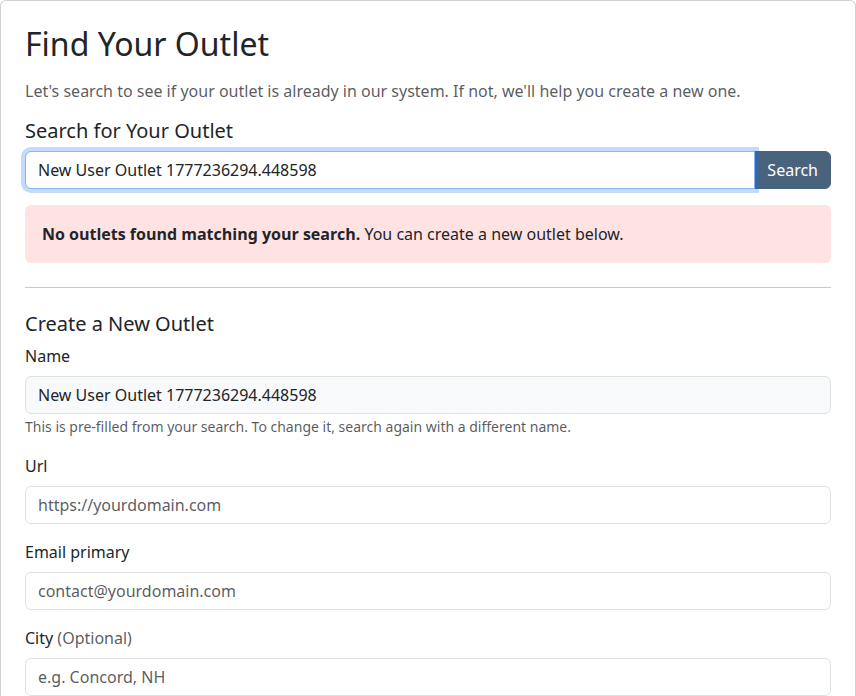
At the Find Your Outlet step, search for your Outlet name. This confirms your newsroom isn't already registered.
-
If no match appears, scroll to the Create a New Outlet form below the search results.
-
Fill out the form. See Outlet details fields below. The wizard pre-fills the Outlet name from your search query.
-
Click Create Outlet and Continue.
The wizard then takes you to the Group's terms-acceptance step. See How to Sign Up with a Signup Link for the rest of the flow.
Create from Your Group's Settings
This is the path to use when you're setting up a Group and adding the founding Outlets yourself.
Warning
You must be a Moderator or Owner of the Group to follow this section. Members without administrator permission won't see the Outlets tab. Ask your Group's Owner if you're not sure which role you have.
-
Go to Settings at https://wire.pluckyworks.org/settings/ and select your Group from the sidebar.
-
Click the Outlets tab.
-
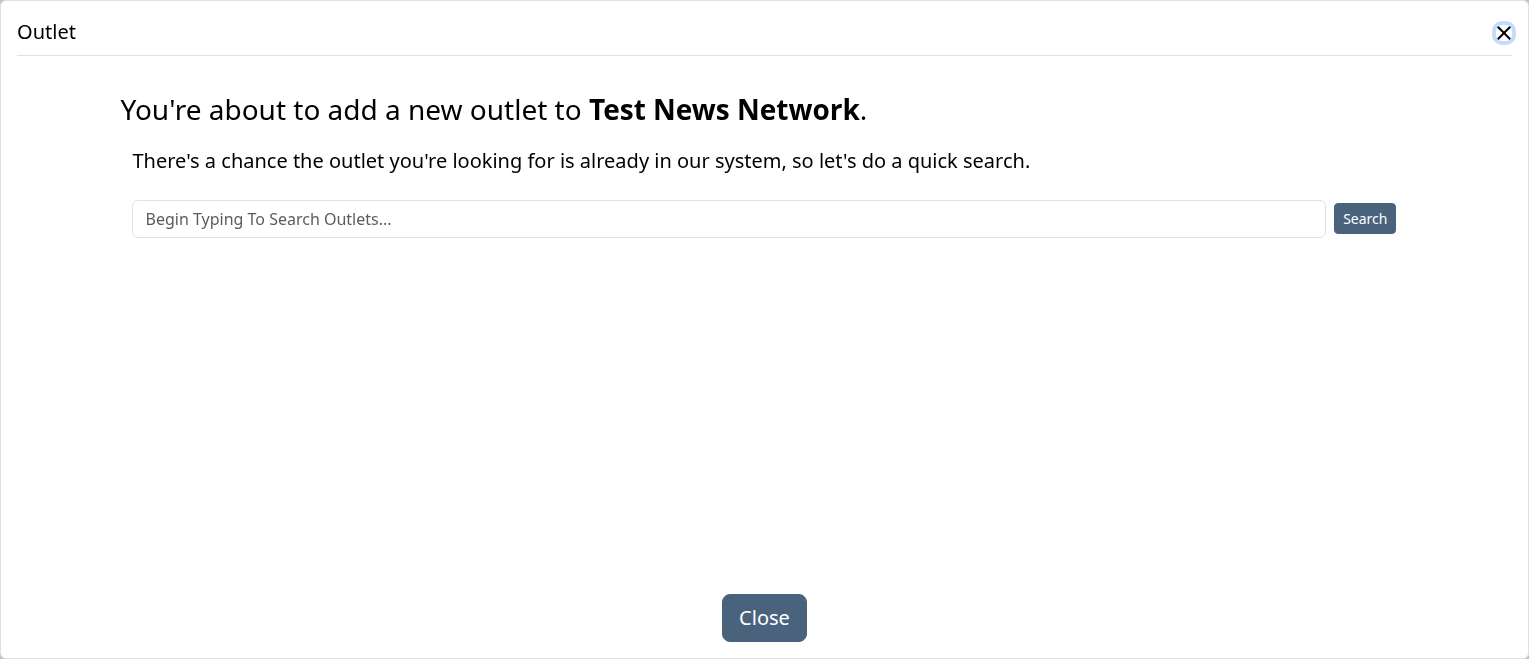
Click Add outlet. A pop-up window, called a modal, appears.
-
Search for the Outlet by name first. If it's already on Wire, click Send Invite next to the matching Outlet to send a join request rather than creating a duplicate.
-
If no matching Outlet exists, fill out the new Outlet form that appears in the same modal: Name (pre-filled from your search), URL, and Primary Email.
-
Click Submit.
Warning
The Outlet you create is added to your Group immediately and counts against your Group's plan. New Outlets still need Plucky staff verification before they can upload stories. They'll appear in the Outlets Pending Staff Approval section of the Outlets tab until verification finishes.
Outlet Details Fields
Field labels and the exact set of fields shown vary by entry point: the dashboard and signup-link paths collect all five, the Group settings modal collects only the first three. Fill in what you see.
| Field | Required? | What to enter |
|---|---|---|
| Outlet Name | Required | The official name of your news organization. On the dashboard and signup-link paths, this is pre-filled from your search query and read-only. If it's wrong, go back and search again. |
| Website URL | Required | Your newsroom's main website. Plucky staff use this to verify the Outlet produces original reporting. |
| Primary Email (sometimes labeled Email) | Required | A contact email for your newsroom, typically a shared inbox like news@yourpaper.org. |
| Location (sometimes labelled City) | Optional | The city, region, or coverage area your newsroom serves. Not collected on the Group settings path. You can add it later by editing the Outlet. |
| Description | Optional | A short paragraph about your newsroom. Helps other Outlets recognise you when they see you in a Group. Not collected on the Group settings path. You can add it later by editing the Outlet. |
What Happens Next
Newly created Outlets are reviewed by Plucky staff to confirm they produce original reporting. Verification typically takes 1–2 business days. While verification is pending:
- You can sign in and look around, and the Outlet shows up in your dashboard.
- The Outlet cannot join Groups, upload stories, or be added to additional Groups.
- If you created the Outlet from a Group's settings, it appears in the Outlets Pending Staff Approval section of the Outlets tab. Other administrators of the Group will see it there as well.
You'll receive an email when verification is complete. If staff need more information, they'll email you before deciding.
Next Steps
- Join a Group: Once your Outlet is verified, join a content-sharing Group to start finding and sharing stories
- Start a Group: Set up a new content-sharing collaborative around your Outlet
- Upload a story: Share your reporting with the rest of your Group
Troubleshooting
-
My Outlet is stuck in pending verification: New Outlets are reviewed by Plucky staff before they can join Groups or upload stories. This typically takes 1–2 business days. All we check for is whether your newsroom produces original reporting. You'll receive an email when verification is complete.
-
I created a duplicate Outlet by accident: Email support@pluckyworks.org and we'll merge or remove the duplicate. Please include both Outlet names so we can match them up.
-
I don't see the Outlets tab in my Group settings: Only Moderators and Owners see the Outlets tab. If you should be an administrator, ask the Group's Owner to update your role from the Members tab.
-
The Add outlet button is missing on the Outlets tab: Refresh the page. If the button still doesn't appear, your role may have been changed. Ask the Group's Owner to confirm you're still a Moderator or Owner.
-
I want to remove an Outlet I created from a Group: Group administrators can remove Outlets from their Group through the Outlets tab. See How to Manage Outlets for the steps. Removing the Outlet from the Group does not delete the Outlet itself.
-
Still stuck? Email support@pluckyworks.org and we'll help you sort it out.