How to Manage Content Licenses
Configure which content Licenses are available in your Group, set a default License, and create custom Licenses for specialized sharing agreements.
Before You Begin
You must be a Group administrator to follow this guide. Outlet members without admin permission won't see the settings described below. Ask your Group administrator if you're not sure which role you have.
You will need:
- A Group you administer (see How to Start a Group)
A License defines the legal terms under which a story can be shared and republished. Every story uploaded to your Group must carry one, so configuring at least one License is a prerequisite for any uploads. For background on how Licenses fit into the wider sharing model, see Users, Outlets, Groups.
Instructions
Open the Licenses Tab
-
Go to Settings and select your Group from the sidebar.
-
Click the Licenses tab.
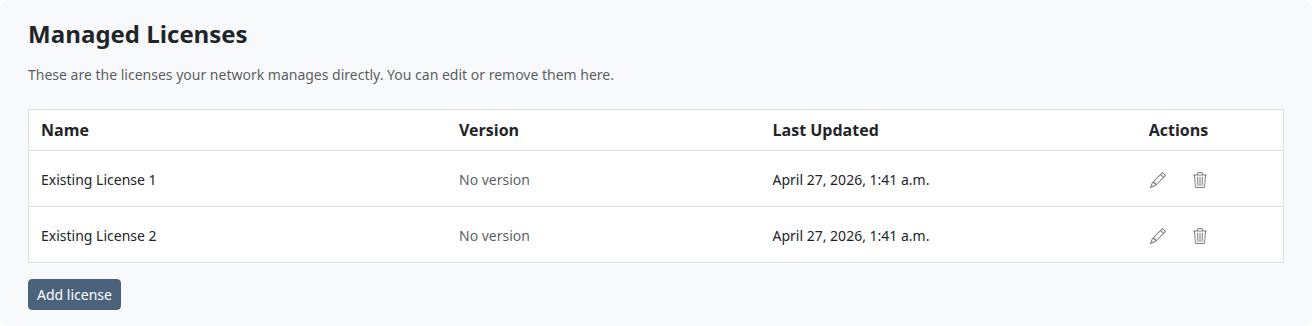
The Licenses tab has three sections: Default License, Allowed Licenses, and Managed Licenses. The first two control what uploaders see; the third is where you build your own Licenses.
Set the Default License
The default License is pre-selected when members upload new stories. Members can still pick a different License at upload time, as long as it's in the allowed list below.
-
In the Default License section, choose a License from the dropdown, the menu that opens when you click the field.
-
The change saves automatically.
Tip
Pick the License that reflects your Group's most common sharing terms. A sensible default reduces friction for uploaders and keeps your Group's content consistent.
Configure Allowed Licenses
The allowed Licenses list determines which Licenses members can pick from when uploading.
-
In the Allowed Licenses section, check the box next to each License you want available to uploaders.
-
Click Save at the bottom of the section.
You'll see two categories of Licenses:
- Standard Licenses: widely recognized Licenses (such as Creative Commons) available to every Group, with links to their official documentation.
- Custom Licenses: Licenses uploaded by other users on the platform, plus any custom Licenses you've created in Managed Licenses below. This category only appears when Use Standard Licenses is turned off in General settings; review unfamiliar terms carefully before allowing them.
Note
If you leave the allowed Licenses list empty, only the default License is available to uploaders. Your default is always included in the allowed set, even if you don't explicitly check it.
Create a Custom License
If the standard Licenses don't meet your Group's needs, you can create your own with bespoke terms.
-
In the Managed Licenses section, click Add license.
-
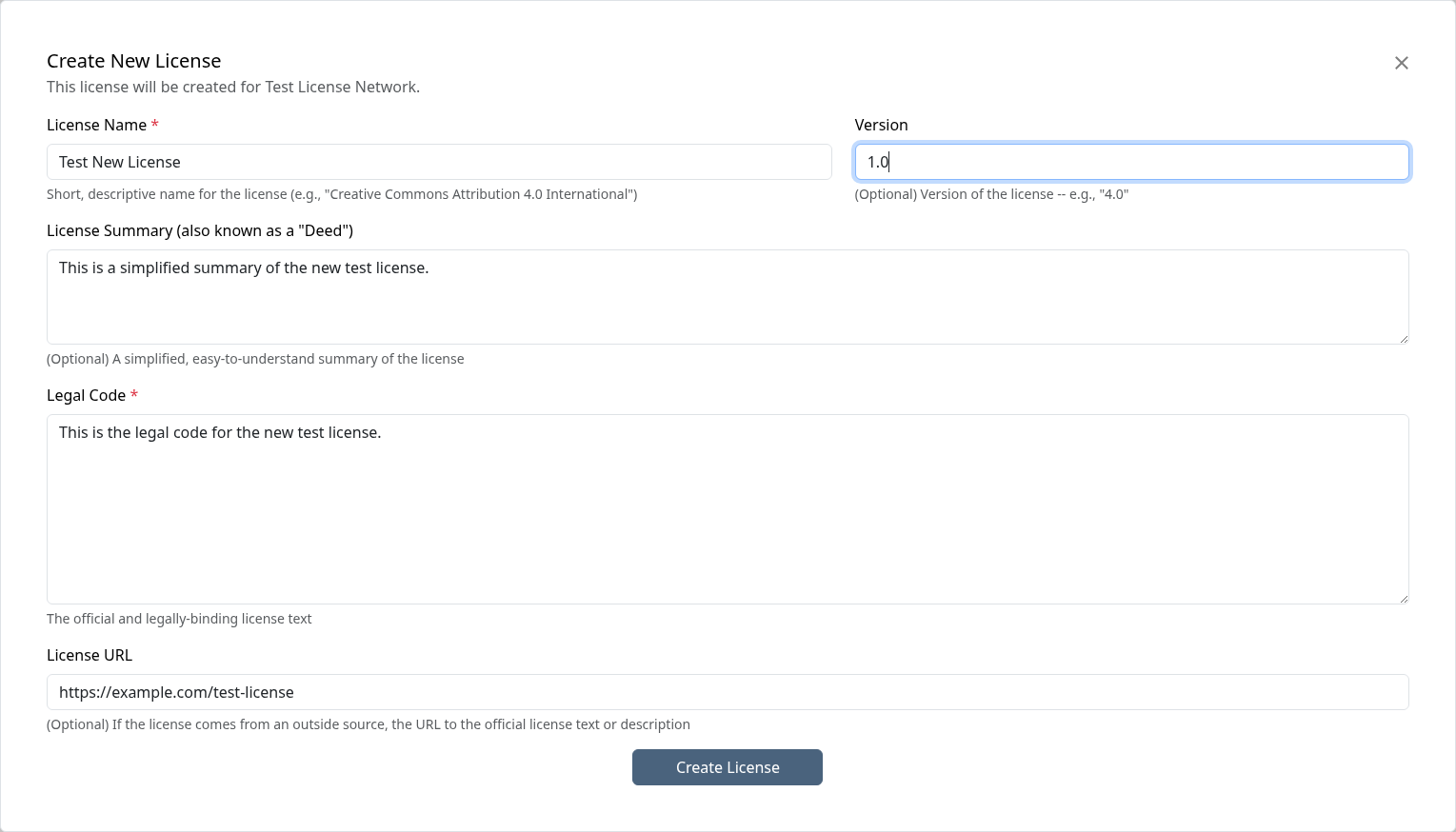
A pop-up window, called a modal, appears. Fill out the fields:
Field Required? What to enter License Name Required A descriptive name (e.g., "Regional News Network Sharing Agreement"). Legal Code Required The full, legally binding text of the License. This is the authoritative version of the terms. License Summary (also known as a "Deed") Optional A simplified, human-readable summary of the terms. This is what members see first; aim for plain language a non-lawyer can understand. Version Optional A version label (e.g., "1.0" or "2024"). Helps you track changes if you update the terms later. License URL Optional A link to the License hosted elsewhere (e.g., on your organization's website). -
Click Create License.
The new License appears in the Managed Licenses table. To make it available to uploaders, check it in the Allowed Licenses section above.
Warning
Have custom Licenses reviewed by legal counsel before you put them into use. Wire does not provide legal advice on custom License terms.
Edit a Custom License
-
In the Managed Licenses section, click the pencil icon next to the License you want to edit.
-
Update the fields as needed.
-
Click Update License.
Warning
Editing a License rewrites the terms for every story already using it. If you're making substantive changes to the legal text, create a new License instead and switch new uploads over. That preserves the original terms for stories already shared under them.
Delete a Custom License
-
In the Managed Licenses section, click the trash icon next to the License you want to delete.
-
Confirm the deletion in the browser prompt that appears.
-
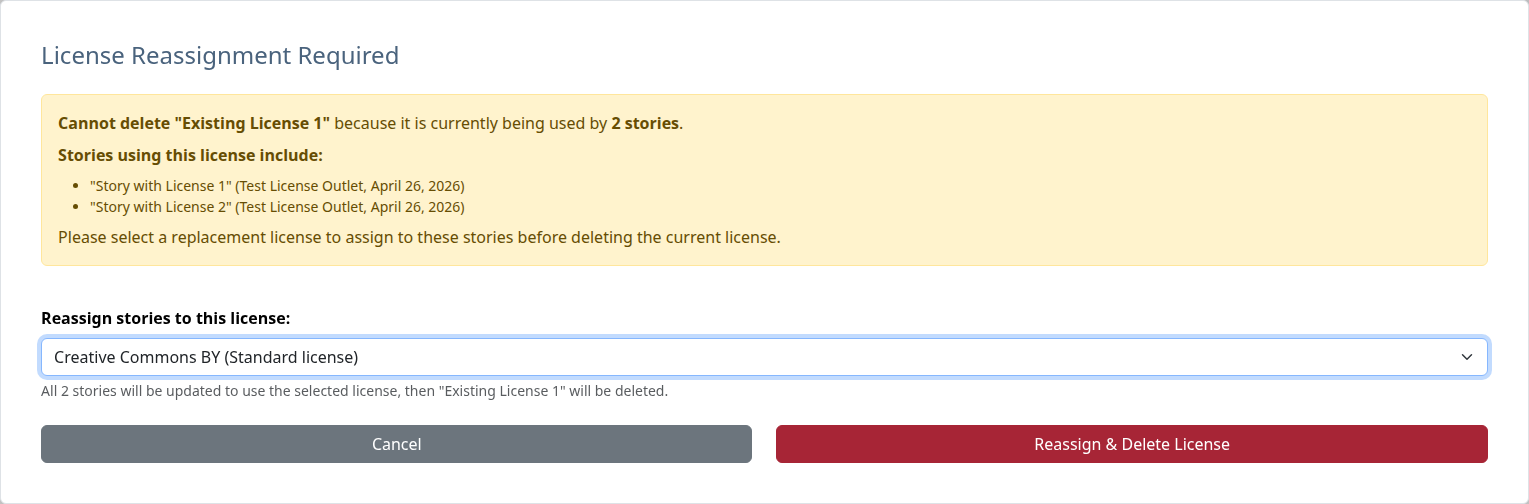
If any stories currently use this License, a License Reassignment Required dialog appears. The dialog lists how many stories are affected and shows a sample so you can review the impact first.
-
Choose a replacement License from the dropdown and click Reassign & Delete License. All affected stories are reassigned to the replacement, and the original License is deleted.
Warning
Reassigning stories to a new License changes the legal terms under which those stories were shared with other Outlets. Tell partners before making the change if the new terms are materially different from the old ones.
What Happens Next
Your License changes take effect immediately:
- Uploaders in your Group see the new default License pre-selected on the upload form, and the allowed Licenses appear in the License dropdown. The change applies the next time they open the upload page.
- Existing stories keep whichever License they were uploaded under, except those reassigned during a delete-with-replacement step.
- Other Outlets downloading your Group's stories see the License terms displayed alongside each story. If you edited a License or reassigned stories to a new one, the next download view reflects the new terms.
Most settings on this page are reversible. You can change the default, adjust the allowed list, or rename a custom License at any time. The two exceptions: editing a License's legal text changes the terms for stories already shared under it, and a deleted License can only be restored by recreating it from scratch.
Next Steps
- How to Manage Tags, Series, and Boilerplates: Organize your Group's shared content
- How to Configure Group Settings: Set your Group's general preferences, including the Use Standard Licenses toggle
- How to Upload a Story: See Licenses in action during the upload process
Troubleshooting
-
Members can't see a License I created: Custom Licenses don't auto-publish. Open the Allowed Licenses section and check the box next to the License before uploaders will see it.
-
I want to switch between standard and custom Licenses: Toggle Use Standard Licenses in the General tab of Group settings. When enabled, only standard Licenses are available; when disabled, both standard and custom Licenses can be used. See How to Configure Group Settings.
-
I can't delete a License: Stories are using it. The delete dialog will prompt you for a replacement License. Pick one and the stories will be reassigned before the original is removed.
-
A member uploaded a story under the wrong License: The story's author or any Group administrator can edit the story and switch its License from the story edit page.
-
Still stuck? Email support@pluckyworks.org, or ask any other Owner of your Group if there is one.