How to Manage Tags, Series, and Boilerplates
Set up the tags, series, and boilerplates that organize stories in your Group. These three tools are independent of each other (configure whichever ones you need, in any order), and all three live as tabs on the Group settings page.
Looking for a different settings tab?
For Users and roles, see How to Manage Members. For Licenses, see How to Manage Content Licenses. For everything else on the General tab, see How to Configure Group Settings.
Before You Begin
You must be a Group administrator to follow this guide. Outlet members without admin permission won't see the settings described below. Ask your Group administrator if you're not sure which role you have.
You will need:
- A Group you administer (see How to Start a Group)
Each of the three concepts on this page lives on its own tab in Group settings: Tags, Boilerplates, and Series. Changes you make in any of these tabs are available to every Outlet in your Group the next time they open the upload or search page.
Manage Tags
Tags are short labels that members attach to stories at upload time so other partners can find them. Your Group can have up to 7 tags in each of three categories, for a maximum of 21 tags. The categories are independent: a tag in Topical does not appear in Editorial or Geographical.
Tag Categories
- Topical Tags
- Describe the subject matter of a story (e.g., "Education", "Public Safety", "Environment", "Housing").
- Editorial Tags
- Describe the editorial approach or treatment (e.g., "Investigative", "Opinion", "Analysis", "Breaking News").
- Geographical Tags
- Describe the coverage area of a story (e.g., "North Region", "State Capitol", "Rural Communities").
Open the Tags Tab
-
Go to Settings (https://wire.pluckyworks.org/settings/) and select your Group from the sidebar.
-
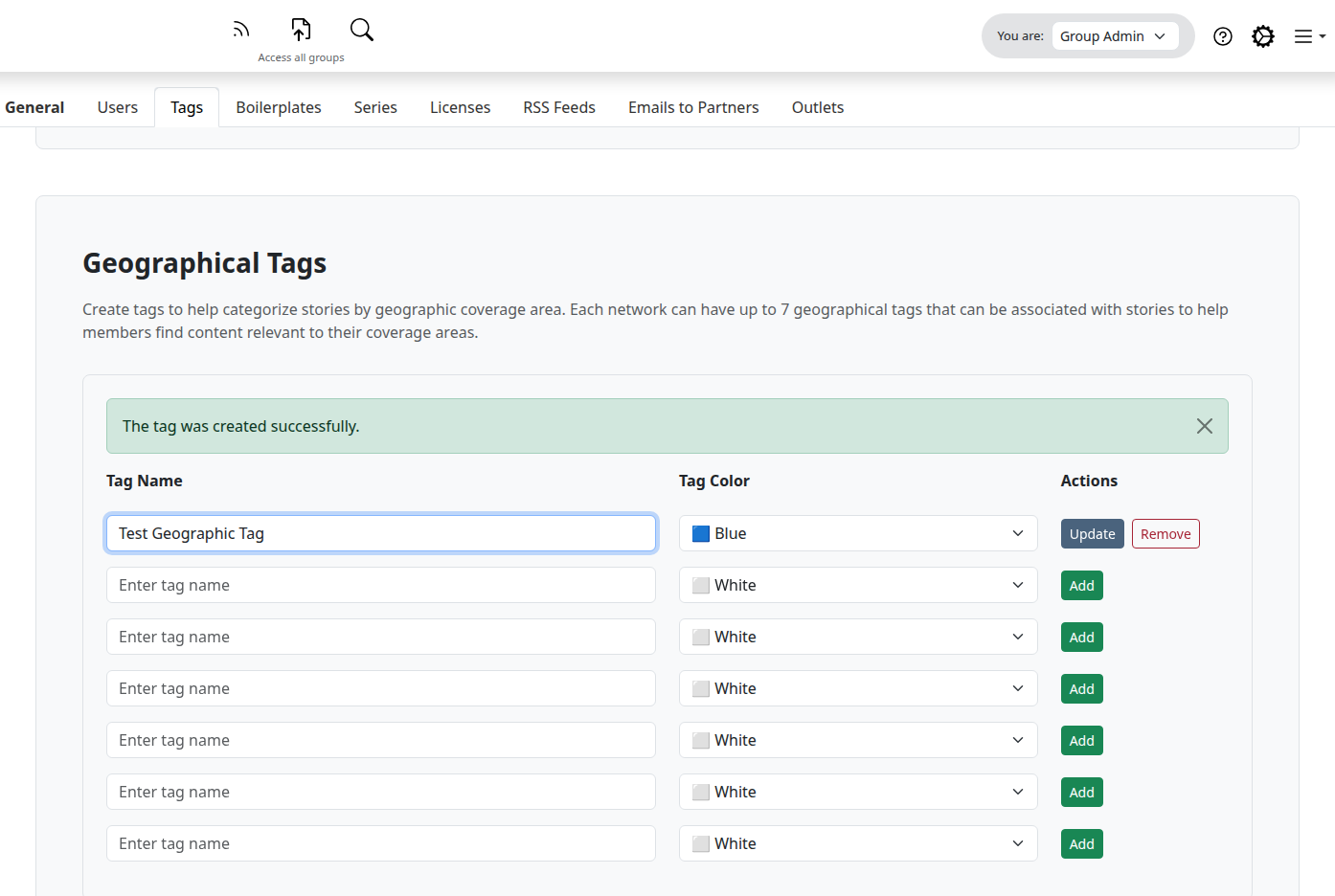
Click the Tags tab. You'll see three sections (Topical Tags, Editorial Tags, and Geographical Tags), each with up to seven rows.
Add a Tag
-
In the section for the category you want, find the first empty Tag Name row.
-
Type a name for the tag.
-
Optionally, choose a Tag Color from the dropdown, the menu that opens when you click the field. Available colors are White (default), Blue, Red, and Gray. The color appears as a subtle background on the tag badge, the small colored label readers see in search results and on story pages.
-
Click Add.
The tag is immediately available on the upload form and the search page for every member of your Group.
Note
Tag names must be unique across all three categories in your Group. You can't have a Topical tag and a Geographical tag with the same name. If you try, you'll see a duplicate-name error.
Edit a Tag
-
Find the tag you want to change in the appropriate category section.
-
Update the Tag Name or Tag Color.
-
Click Update.
Existing stories that use the tag keep their association: the rename or recolor applies to them too.
Remove a Tag
-
Find the tag you want to remove.
-
Click Remove next to it.
-
Confirm the deletion in the browser prompt.
Warning
Removing a tag detaches it from every story it was attached to in your Group. The stories themselves are untouched, but they no longer carry that tag and will not appear when partners filter by it. There is no undo: recreate the tag and reattach it manually if you remove one by mistake.
Manage Boilerplates
Boilerplates are reusable text blocks that wrap around a story's body, typically used for standard attribution, project descriptions, or legal notices that apply to multiple stories. A boilerplate has two text fields: a Header that appears above the story body and a Main Text (sometimes called a "footer") that appears below it. Members pick a boilerplate when uploading; the same boilerplate can be reused on as many stories as your Group needs.
A typical boilerplate Main Text might read:
This story was produced as part of the Great Lakes News Collaborative, a partnership of 12 newsrooms covering the region.
Open the Boilerplates Tab
-
Go to Settings (https://wire.pluckyworks.org/settings/) and select your Group from the sidebar.
-
Click the Boilerplates tab. You'll see a table listing every boilerplate in your Group with its Title, Header, and Footer preview, plus edit and remove icons.

Add a Boilerplate
-
Click Add boilerplate. A pop-up window (called a modal) appears with the boilerplate form.
-
Fill out the fields:
Field Required? What to enter Name Required A descriptive label for this boilerplate (e.g., "Standard Attribution" or "Election Series Footer"). Members see this name when picking a boilerplate during upload. Header Optional Text that appears directly above the story body. Use it for introductory context or project descriptions. Leave empty if you only need a footer. Main Text Required Text that appears directly below the story body. This is the primary boilerplate content: typically attribution, legal notices, or collaborative project descriptions. -
Click Save.
Tip
You can include hyperlinks in the Header and Main Text fields using HTML. For example: <a href="https://example.com">Example Collaborative</a>.
The new boilerplate appears in the table immediately and is available on the upload form for every member of your Group.
Edit a Boilerplate
-
In the Boilerplates table, click the pencil icon next to the boilerplate you want to edit.
-
Update the fields as needed.
-
Click Save.
Note
Editing a boilerplate updates every story that uses it. Wire renders the current boilerplate text on each story page and download: there is no separate copy frozen on individual stories. If you only want to change the wording on new uploads, create a new boilerplate instead.
Remove a Boilerplate
-
In the Boilerplates table, click the trash icon next to the boilerplate you want to remove.
-
Confirm the deletion in the browser prompt.
Warning
Removing a boilerplate is permanent: there is no undo. The boilerplate text disappears from every story that previously used it: the story's own body text is unchanged, but the appended boilerplate is gone. The boilerplate also disappears from the upload form so members can no longer apply it to new stories. If you remove one by mistake, recreate it from scratch and reattach it to each story that needs it.
Manage Series
A series is a named collection of stories tied together by a common theme: for example, "2024 Election Coverage", "Coastal Erosion Investigation", or "Back to School". Members can assign a story to a series at upload time, and other partners can browse or filter by series on the search page. Unlike tags, a series has a description that appears alongside it, so members understand which stories belong in it.
Open the Series Tab
-
Go to Settings (https://wire.pluckyworks.org/settings/) and select your Group from the sidebar.
-
Click the Series tab. You'll see a table listing every series in your Group with its Name, Description preview, plus edit and remove icons.

Add a Series
-
Click Add series. A modal appears with the series form.
-
Fill out the fields:
- Name (required): A descriptive label for the series (e.g., "Water Quality Investigation"). Members see this name when assigning a story to a series during upload.
- Description (required): Explain what the series covers and what types of stories belong in it. This helps members decide whether their story fits.
-
Click Save.
The new series appears in the table immediately and is available on the upload form for every member of your Group.
Edit a Series
-
In the Series table, click the pencil icon next to the series you want to edit.
-
Update the Name or Description.
-
Click Save.
Existing stories that belong to the series stay assigned to it under the new name.
Remove a Series
-
In the Series table, click the trash icon next to the series you want to remove.
-
Confirm the deletion in the browser prompt.
Warning
A series can only be removed if no stories are currently assigned to it. If you try to remove a series with stories attached, you'll see an error: reassign or unassign every story from that series first. Once removed, the series is gone permanently. There is no undo: recreate it and reassign stories manually if you remove one by mistake.
What Happens Next
Tag, series, and boilerplate changes apply immediately:
- Members uploading stories see your additions on the upload form the next time they open the page. The Topical, Editorial, and Geographical tag dropdowns reflect the latest tag list, the boilerplate selector lists every boilerplate you've created, and the series selector shows every series.
- Partners searching for stories can filter by your tags and series the next time they reload the search page. Tags appear as colored badges on each result, and series names appear in the headline area.
- Existing stories keep their assignments to whatever tags, boilerplates, and series they were uploaded with. Renames, recolors, and edits to boilerplate text propagate live: partners viewing or downloading a story see the current tag name and color, the current series name, and the current boilerplate text, not a snapshot frozen at upload time.
- Removed tags or boilerplates disappear from the upload and search forms immediately. Stories previously tagged lose only the tag association; stories previously using a removed boilerplate lose the appended boilerplate text but keep their own body text.
- Removed series disappear from the upload and search forms immediately, but a series can only be removed if no stories are currently assigned to it.
Most changes are reversible: recreate a removed tag, or edit a boilerplate or series, at any time. The exceptions are removals: a deleted tag, series, or boilerplate cannot be restored, only recreated.
Next Steps
- How to Upload a Story: See tags, series, and boilerplates in action during the upload process
- How to Find Stories: Use tags and series to filter the search page
- How to Manage Content Licenses: Configure the legal terms for shared content
- How to Configure Group Settings: Set your Group's general preferences
Troubleshooting
-
I can't add a new tag: Each category has a limit of seven tags. If every row in that category is filled, the Add button won't appear. Remove an unused tag to make room.
-
I get a duplicate-name error when adding a tag: Tag names must be unique across all three categories in your Group. A name already used as a Topical tag can't be reused as an Editorial or Geographical tag. Pick a different name, or remove the existing tag first.
-
Members can't see a tag, series, or boilerplate I just created: All three are available immediately. Ask the member to reload the upload or search page.
-
I want to rename a tag or series without losing existing story associations: Edit it directly. Stories keep their association with the renamed tag or series.
-
I get an error when trying to remove a series: A series can only be removed if no stories are assigned to it. Filter the search page by the series to find every story using it, then open each story's edit page and reassign or unassign it. Once the series has no stories, you'll be able to remove it.
-
I removed a series by mistake: The series is permanently deleted. Recreate it with the same name and reassign stories to it from each story's edit page.
-
Still stuck? Email support@pluckyworks.org, or ask any other Owner of your Group if there is one.